Spacing
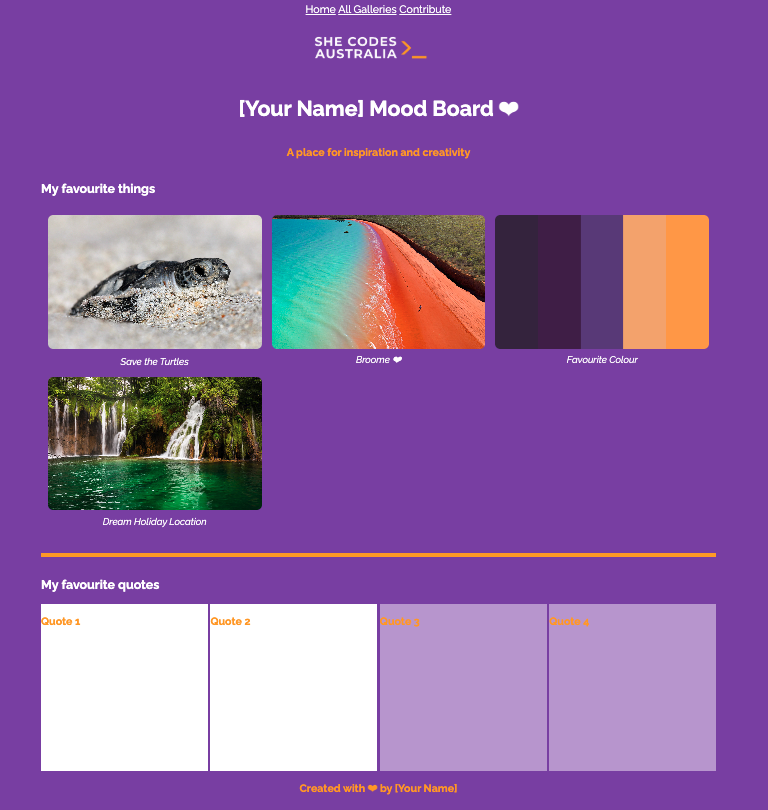
Now that we’ve added some colour, it makes the awkward spacing around elements a bit more obvious.
Let’s fix that!
Step 1
At the moment, the nav is shoved against the top of the page.
Let’s add some space between the end of the nav and the text.
We can do this using the padding property.
Add the following to your CSS:
Add this code
nav {
	padding: 30px;
}
Test
There will now be more space in the nav around the text.
Step 2
Notice how there’s large gaps between the images? Well, they can be customised too!
Add this code
.grid-container {
	display: grid; /* Automatically creates as many columns as fit, with a minimum width of 250px */
	grid-template-columns: repeat(auto-fit, minmax(250px, 1fr));
	gap: 15px; /* Spacing between grid items */
	padding: 10px;
}
.grid-item {
	margin: 0; /* Resets default figure margins - this line of code is added */
	height: 250px;
	display: inline-block;
}
Test
There will now be a gap between the images.
Did you notice how we did this padding a little differently?
Instead of just using padding we also used gap and margin.
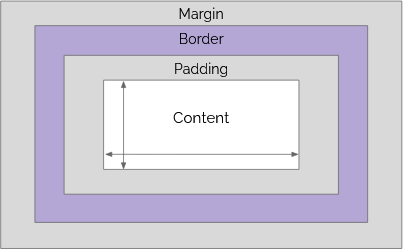
- Padding adds space inside the element (between content and border)
- Margin creates space outside the element (pushing others away)
- Gap is a modern approach for setting space between items in a container
Challenge!
Add 20px of padding to each of the quotes.
Challenge!
Challenge!
Add 30px of padding to the footer.
You might find this graphic useful in comparing margin and padding:
Here’s what your page should look like so far: