Layout
Ok, so our images are now at a much more manageable size. The next thing that we are going to do is figure out how to modify the layout of elements, e.g. put our images side by side, etc.
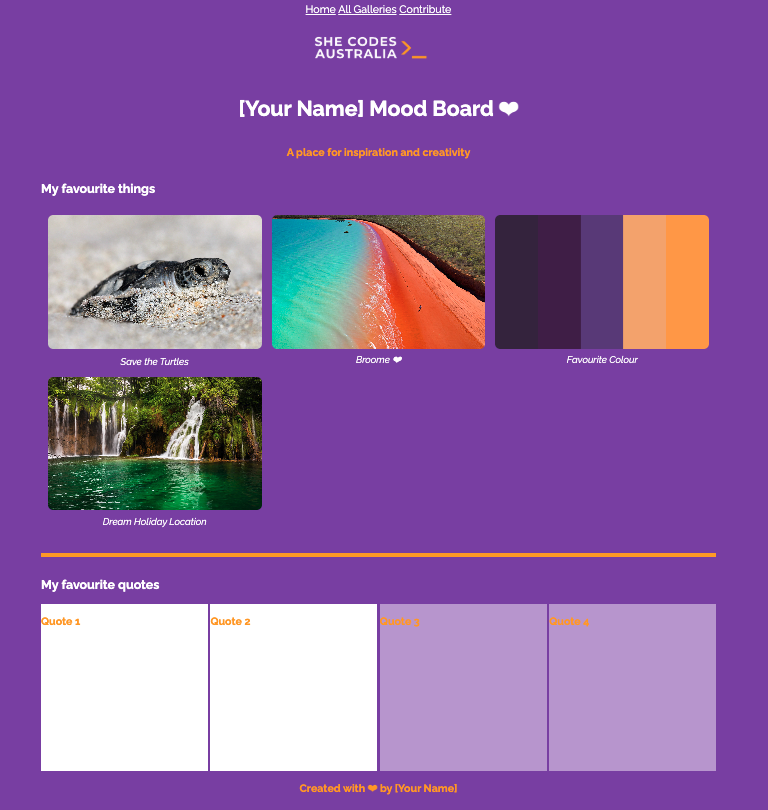
Once again, we’ll start at the top of the page and work our way down, using our preview as a guide:
Step 1
First, the nav.
In the preview, the text is in the center of the page.
We can achieve this effect using the text-align property.
Add the following to your CSS:
/* Your CSS here */
nav {
	text-align: center;
}
Test
The nav text should now be in the center.
Note
As we go through this tutorial, you’ll start to see that every CSS property has many different values. We’ll link to some docs here and there to show you all the different values if you are interested. For example, here are all the values for text-align.
Step 2
Next up, let’s get those cards to be side by side.
Add the following to your CSS:
Before - Replace this code
.grid-item {
	height: 250px;
}
After - Updated code
.grid-item {
	height: 250px;
	display: inline-block;
}
Test
The cards should now be side by side.
Let’s unpack that.
There are several different values for display, but right now we’ll just focus on three of them:
display: block- This tells the element to take up the whole line, stopping anything else from displaying beside it.
display: inline- This tells the element to allow other elements to be displayed beside it.
display: inline-block- This is the same as inline, but allows you to also specify the width of the element.
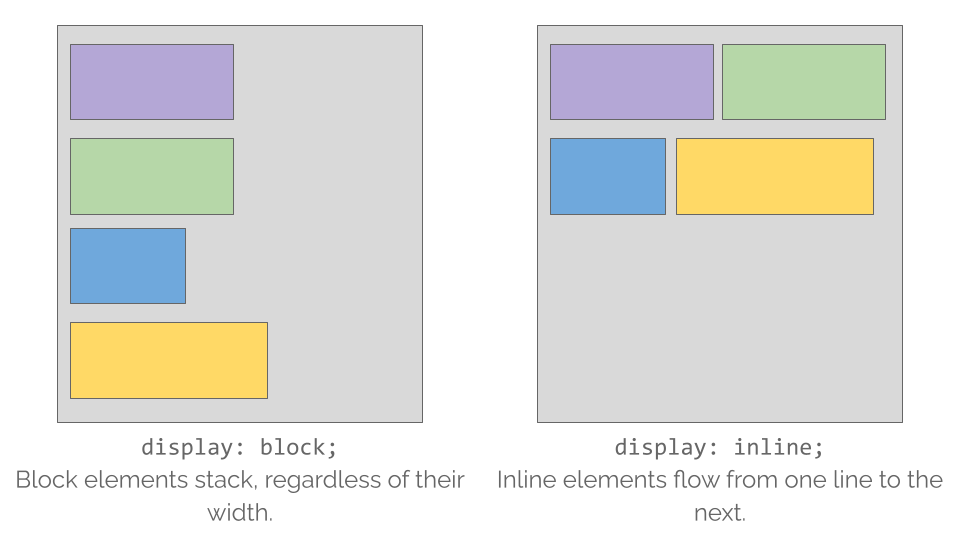
When we set the cards to be inline-block, we told them they can be side by side while still maintaining the width we set earlier of 25%.
Step 3
Now that we have the images formatted, let’s start formatting the quote blocks
Add code
.first-row {
  height: 250px;
  width: 250px;
  display: inline-block;
}
.second-row {
  height: 250px;
  width: 250px;
  display: inline-block;
}
Challenge!
Add CSS to set the header and main elements’ text-align property to center. To center all the content.
A similar method of doing this is by using justify-content.
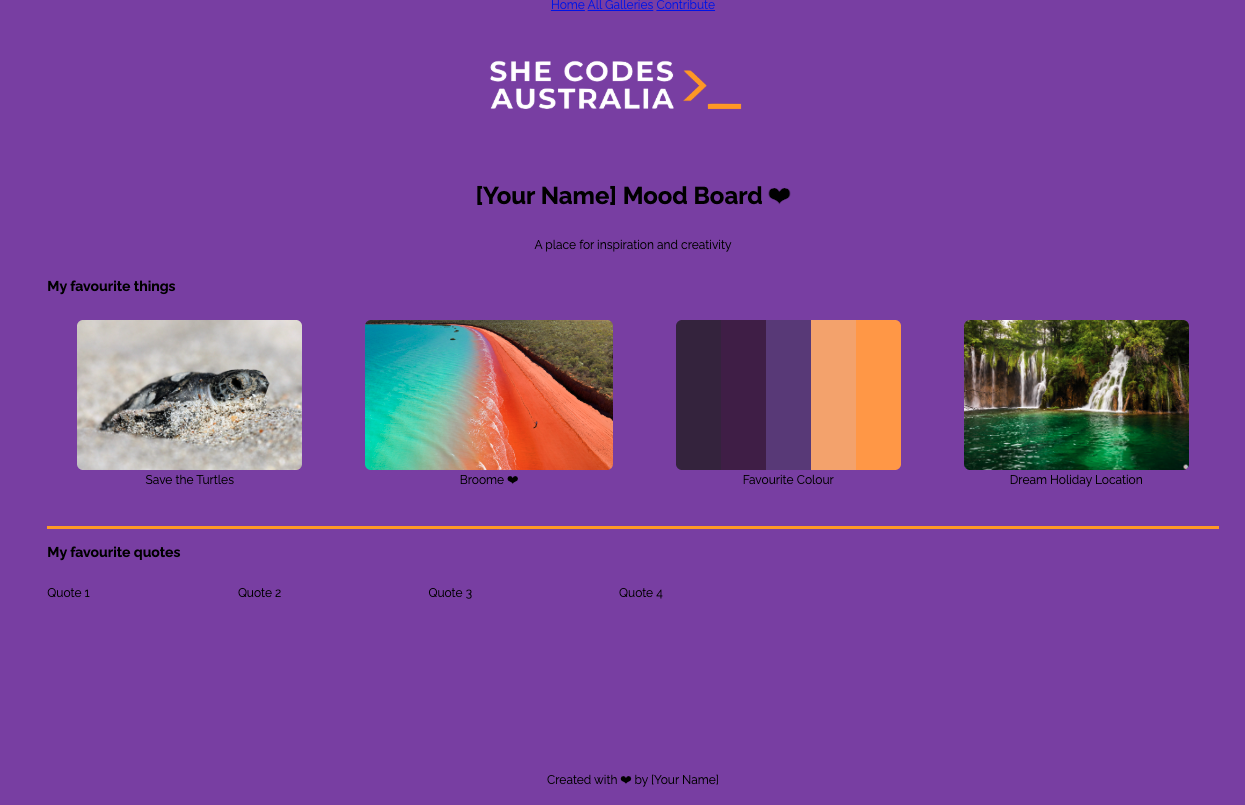
It’s really starting to come together now! Here’s what your page should look like so far:
NOTE
This preview is an example of how it would look with the completion of the challenges. To check or compare, take a look at the following CSS code.
CSS Code <-- click to reveal
@import url('https://fonts.googleapis.com/css2?family=Raleway:ital,wght@0,100..900;1,100..900&display=swap');

html {
  background-color: #8246af;
  font-family: "Raleway";
}

nav {
  text-align: center;
}

header {
  text-align: center;
}

img {
  object-fit: cover;
}

header img {
  height: 200px;
}

body {
  display: flex;
  justify-content: center;
  align-items: center;
  flex-direction: column;
}

figcaption {
  text-align: center;
}

.grid-item {
  height: 250px;
  display: inline-block;
}

.grid-item img {
  width: 100%;
  height: 200px;
  border-radius: 8px;
}

.first-row {
  height: 250px;
  width: 250px;
  display: inline-block;
}

.second-row {
  height: 250px;
  width: 250px;
  display: inline-block;
}