Figures
The figure element is similar to a div in that its going to help give us some more structure on our page. The figure tag is used in HTML to group together content like an image, diagram, or code snippet with its caption. It helps keep things organised so the picture and its description always stay connected on the page.
For now, let’s go through and add the figure tag around each of our image/quotes to pop them in boxes.
While we are here we’re going to add the class of tile to each figure box.
Up until now, most of the elements we’ve used have contained a tag name and some content. But elements can also have what we call attributes. Attributes allow us to define more information about the element.
We do this by adding the attribute to the opening tag and providing a value inside of quotes.
For example, the following is an h1 element with an id attribute of value title:
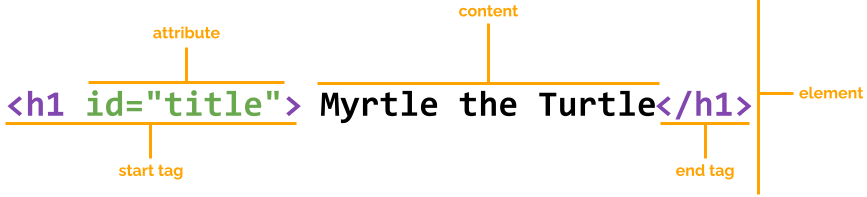
Typically we would use an id if we wanted to identify one object for styling purposes, and we would use a class attribute if we wanted to apply the same styling to multiple things on our page.
Let’s add this opening and closing figure tag to each box on our page.
<figure class="grid-item">
      <!-- your images or paragraph text -->
</figure>
Your main should now look lke the below.
<main>
	<h2>She Codes by the Beach 2026</h2>
	<div>
            <figure class="grid-item">
                  <a href="https://en.wikipedia.org/wiki/Turtle">
                        <img src="https://assets.codepen.io/5804361/turtle_2.jpg" alt="A baby turtle on the beach"/>
                  </a>
            </figure>
            <figure class="grid-item">
                  <img src="https://images.ctfassets.net/0zg5jftjwixq/2wqI4cgOUXecvmBiQ2v7pi/8f8f2a4ec1bca634ea15f587593f4ee7/NEW-Broome-Coast-WA-122782-56.jpg?w=1600" alt="We love Broome"/>
            </figure>
            <figure class="grid-item">
                  <img src="https://www.foundanimals.org/wp-content/uploads/2023/02/twenty20_b4e89a76-af70-4567-b92a-9c3bbf335cb3.jpg" alt="Black Cat Lying Upside Dowwn Staring Adorably"/>
            </figure>
            <figure class="grid-item">
                  <img src="https://www.color-hex.com/palettes/8143.png" alt="Colour Palette Featuring Orange and Purple"/>
            </figure>
            <figure class="grid-item">
                  <div>
                        <p>“Creativity takes courage.”</p>
                  </div>
            </figure>
      </div>
</main>
Did you notice how your images straightened up a bit after we added that last bit of code? This is because we’ve already added some CSS styling in to get you started. We love it when a plan comes together!
Next we’re going to add a couple of final styling attributes. Firstly we want to target that div that is wrapped around all our content and give it the class grid-container. This is going to group them up so they start appearing in the rows and columns we’ve defined in our CSS (don’t worry we will explore that magic shortly). Find the div and add in the class alltites as shown below.
<div class="grid-container">And lastly we are going to add a class to our <div> with the quote in it to style it separately from the other tiles. For this one we will use an id. Go ahead and find that div, and add in the below ID.
<div id="quotetile">Yeehawww we’ve got 6 boxes looking cute!
Final step - Captions!
The last step we are going to do is adding some cute little captions to our figures. We’re going to use the element figcaption for this.
<figcaption>Inspiration</figcaption>Let’s go ahead and pop those underneath each of our images. You don’t need to put one on your quote box, but if you’d like to call to - go for it! The full code is below if you want to check your work.
Check your Code
Your web page would not have shown changes yet - this step is preparation for the CSS tutorial!
Check Your Code
HTML Code <-- Click to reveal
<html lang="en">
<head>
	<meta charset="UTF-8">
	<title>She Codes</title>
	<link rel="stylesheet" href="./styles.css">
</head>

<body> <!-- Your content under here -->
	<header> <!-- Your header section -->
		<h1>[Your Name] Mood Board ❤</h1>
		<p>A place for inspiration and creativity</p>
	</header>

	<main> <!-- Your main content goes under here -->
		<h2>She Codes by the Beach 2026</h2>
		<div class = "grid-container"> <!-- Your images goes under here -->
		<figure class="grid-item">
			<a href="https://en.wikipedia.org/wiki/Turtle" target="_blank">
				<img src="https://assets.codepen.io/5804361/turtle_2.jpg" alt="A baby turtle on the beach" />
			</a>
			<figcaption>Save the Turtles</figcaption>
		</figure>
		<figure class="grid-item">
			<img src="https://images.ctfassets.net/0zg5jftjwixq/2wqI4cgOUXecvmBiQ2v7pi/8f8f2a4ec1bca634ea15f587593f4ee7/NEW-Broome-Coast-WA-122782-56.jpg?w=1600" alt="We love Broome" />
			<figcaption>Broome ❤</figcaption>
		</figure>
		<figure class="grid-item">
			<img src="https://www.foundanimals.org/wp-content/uploads/2023/02/twenty20_b4e89a76-af70-4567-b92a-9c3bbf335cb3.jpg" alt="Black Cat Lying Upside Dowwn Staring Adorably" />
		<figcaption>Happiness</figcaption>
		</figure>
		<figure class="grid-item">
			<img src="https://www.color-hex.com/palettes/8143.png" />
			<figcaption>Favourite Colour</figcaption>
		</figure>
		<figure class="grid-item">
			<img src="https://www.wildplanetblog.com/img/croatia-df4a3205.jpg" alt="Plitvice National Park Waterfalls" />
			<figcaption>Dream Holiday Location</figcaption>
		</figure>
		<!-- You can add more images to your grid view of images by repeating the process above -->
		</div>
			<div id = "quotetile">
				<p>“Creativity takes courage.”</p>
			</div>
	</main>

	<footer>
		<p>Created with ❤️ by Your Name</p>
	</footer>
</body>

</html>